Place a logo on a T-shirt mockup
Drop an SVG or transparent PNG logo to wrap it onto a T-shirt or canvas tote locally, with zero sign-up.
 Logo · flat artwork
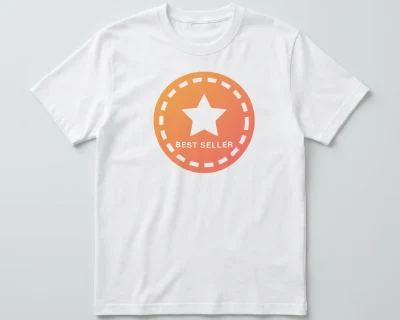 Mockup · shirt contour
How to Use
Preview how a client logo or graphic print sits on apparel before going to screen print or DTG. Vectorpip wraps your opened SVG or transparent PNG directly into a calibrated 4×12 mesh contour over studio blank garments (White T-shirt, Black T-shirt and Canvas tote) with realistic Multiply or Normal print ink blending and live editability in the editor canvas.
- Click Choose a logo to open a vector SVG or transparent PNG logo (or click Open Sample to preview with the badge logo).
- Switch between White T-shirt, Black T-shirt and Canvas tote to inspect chest and bag proportions.
- Toggle Blend between Multiply (best for dark inks on light cotton/canvas) and Normal (best for opaque white/bright inks on black fabric).
- Need a subtle nudge or size tweak? Click Select print to drag the wrapped artwork directly, then click Download PNG for a crisp 2× render.
| Built-in blanks | 3 studio-lit 1024×1024 blanks: White T-shirt chest, Black T-shirt chest and natural Canvas tote front pocket |
|---|---|
| Non-destructive warp | Uses Vectorpip's live 4×12 mesh envelope, keeping vector logos razor-sharp and repositionable |
| Blend control | Automatic ink blending defaults (Multiply on white/tote, Normal on black) with one-click switching |
| Cost & privacy | 100% browser-local rendering at zero cost: no AI credits, no watermark, no sign-up and no logo upload |
This fast mockup flow includes 3 calibrated studio garment blanks (White T-shirt, Black T-shirt and Canvas tote) with preset chest/pocket surfaces. For custom garment photos of your own, open both your logo and photo in the full editor and use Object > Mockup > Make in the AI assistant (requires sign-in and AI credits).
- What logo formats work best for the T-shirt mockup?
- Vector SVG logos produce the sharpest edges at any scale; PNG, WebP and JPG logos are also supported directly (use a transparent PNG so no white box prints onto the black tee).
- Why does my dark logo look faded on the Black T-shirt preset?
- Multiply ink blend multiplies colors against the shirt fabric, making dark inks disappear into black cotton. Black T-shirt automatically switches Blend to Normal; for bright or white prints keep Normal selected.
- Can I move or scale the logo slightly after it lands on the shirt?
- Yes. Click Select print in the toolbar to select the warped print group directly on the canvas and resize or nudge it without losing the garment photo.
- Does this cost AI credits or put a watermark on exports?
- No. Everything runs locally in your browser with no sign-in, no credits spent and clean 2× PNG downloads.
RelatedMake a round logoMake a die-cut stickerConvert a PNG to SVG