Convert an SVG to AI
An .ai file Illustrator opens, with your paths, colors, gradients and groups intact, free.
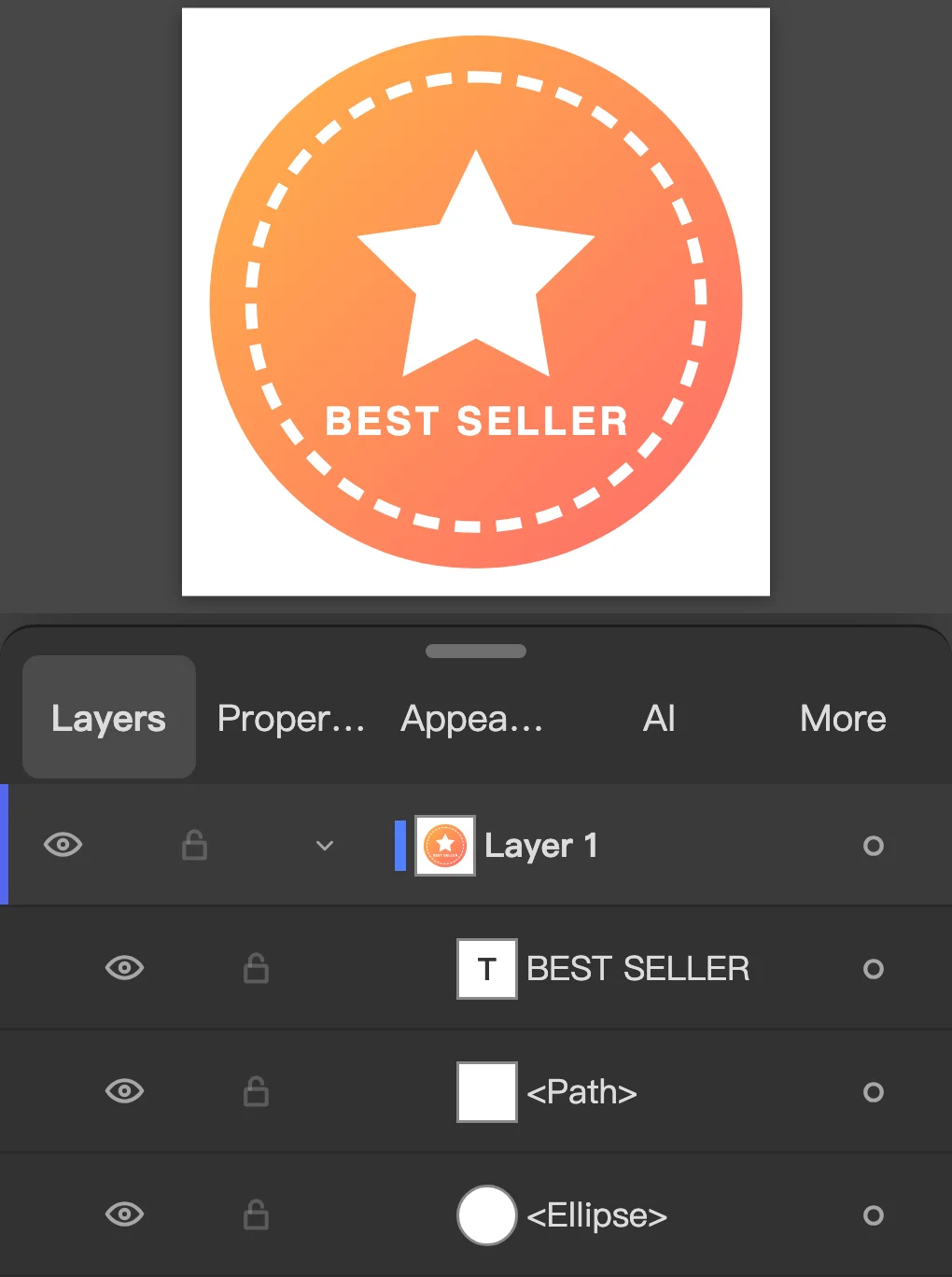
How to Use
To convert an SVG to AI, open it here and click Save as .ai: you get a PDF-compatible .ai that Adobe Illustrator opens, paths, colors, gradients and groups intact. Free, and the file is not uploaded.
- Click Choose an SVG and pick the file (on a computer you can also drop it anywhere on the page). The SVG opens on an artboard with its paths, gradients, groups and type as they were.
- Save the .ai: on a phone, keep .ai as the Format and click Save; on a computer, click Save as .ai in the Convert to .ai box that appears over the artwork.
- The file is written as a PDF-compatible .ai, the kind Adobe Illustrator saves by default, and saved under the SVG's name.
- To change something first, click Edit first in the box on a computer, or Open in Editor on a phone. Recolor or delete with the Selection tool, then choose File > Save As… and pick the .ai format (.ai (PDF-compatible) in Chrome's save dialog). Save As also offers EPS and PDF, and File > Export > Export As… writes PNG or SVG from the same file.
- Will Adobe Illustrator open the .ai file?
- Yes. It is a PDF-compatible .ai, the format Illustrator writes when Create PDF Compatible File is on, so Illustrator opens it as plain artwork. Programs that read PDF-based .ai files, such as Affinity Designer, Inkscape and CorelDRAW, open it too. What they get is artwork: paths, fills, strokes, gradients, groups and layers, not Vectorpip's live effects.
- Does the text stay editable?
- The letters are written as outlines, so they look exactly as designed on any computer, and the same words sit over them as invisible text, so the file can still be searched and the text copied. To change the wording in Illustrator, retype it. Open the .ai in Vectorpip again and the type is still live.
- What happens to groups, layers and gradients?
- Groups stay groups, and each layer is written as a PDF layer, which Illustrator lists in its Layers panel. Linear and radial gradients are written as PDF shadings, so they stay gradients rather than becoming pictures. Soft effects such as blur and shadows are written as they look.
- Is there a file size limit?
- An SVG opens up to 120 MB of drawing (embedded pictures don't count) and 250,000 elements, because it is parsed whole in memory; a bigger one is refused with a message. There is no account, no watermark and no daily count. The conversion runs in your browser, so nothing is uploaded and the file never leaves your computer.
- Can I convert several SVGs at once?
- One at a time for now. File > Open… accepts several files and opens each in its own tab, but each one is saved as .ai separately with File > Save As….
More free toolsAI to SVGSVG to PNGSVG to JPGSVG to DXFSVG to ICOOpen .ai filesImage to vectorOpen EPS files
Convert an SVG to AI
An .ai file Illustrator opens, with your paths, colors, gradients and groups intact, free.

How to Use
- Click Choose an SVG and pick the file (on a computer you can also drop it anywhere on the page). The SVG opens on an artboard with its paths, gradients, groups and type as they were.
- Save the .ai: on a phone, keep .ai as the Format and click Save; on a computer, click Save as .ai in the Convert to .ai box that appears over the artwork.
- The file is written as a PDF-compatible .ai, the kind Adobe Illustrator saves by default, and saved under the SVG's name.
- To change something first, click Edit first in the box on a computer, or Open in Editor on a phone. Recolor or delete with the Selection tool, then choose File > Save As… and pick the .ai format (.ai (PDF-compatible) in Chrome's save dialog). Save As also offers EPS and PDF, and File > Export > Export As… writes PNG or SVG from the same file.
To convert an SVG to AI, open it here and click Save as .ai: you get a PDF-compatible .ai that Adobe Illustrator opens, paths, colors, gradients and groups intact. Free, and the file is not uploaded.
- Will Adobe Illustrator open the .ai file?
- Yes. It is a PDF-compatible .ai, the format Illustrator writes when Create PDF Compatible File is on, so Illustrator opens it as plain artwork. Programs that read PDF-based .ai files, such as Affinity Designer, Inkscape and CorelDRAW, open it too. What they get is artwork: paths, fills, strokes, gradients, groups and layers, not Vectorpip's live effects.
- Does the text stay editable?
- The letters are written as outlines, so they look exactly as designed on any computer, and the same words sit over them as invisible text, so the file can still be searched and the text copied. To change the wording in Illustrator, retype it. Open the .ai in Vectorpip again and the type is still live.
- What happens to groups, layers and gradients?
- Groups stay groups, and each layer is written as a PDF layer, which Illustrator lists in its Layers panel. Linear and radial gradients are written as PDF shadings, so they stay gradients rather than becoming pictures. Soft effects such as blur and shadows are written as they look.
- Is there a file size limit?
- An SVG opens up to 120 MB of drawing (embedded pictures don't count) and 250,000 elements, because it is parsed whole in memory; a bigger one is refused with a message. There is no account, no watermark and no daily count. The conversion runs in your browser, so nothing is uploaded and the file never leaves your computer.
- Can I convert several SVGs at once?
- One at a time for now. File > Open… accepts several files and opens each in its own tab, but each one is saved as .ai separately with File > Save As….
More free toolsAI to SVGSVG to PNGSVG to JPGSVG to DXFSVG to ICOOpen .ai filesImage to vectorOpen EPS files
No uploadNo sign-up