
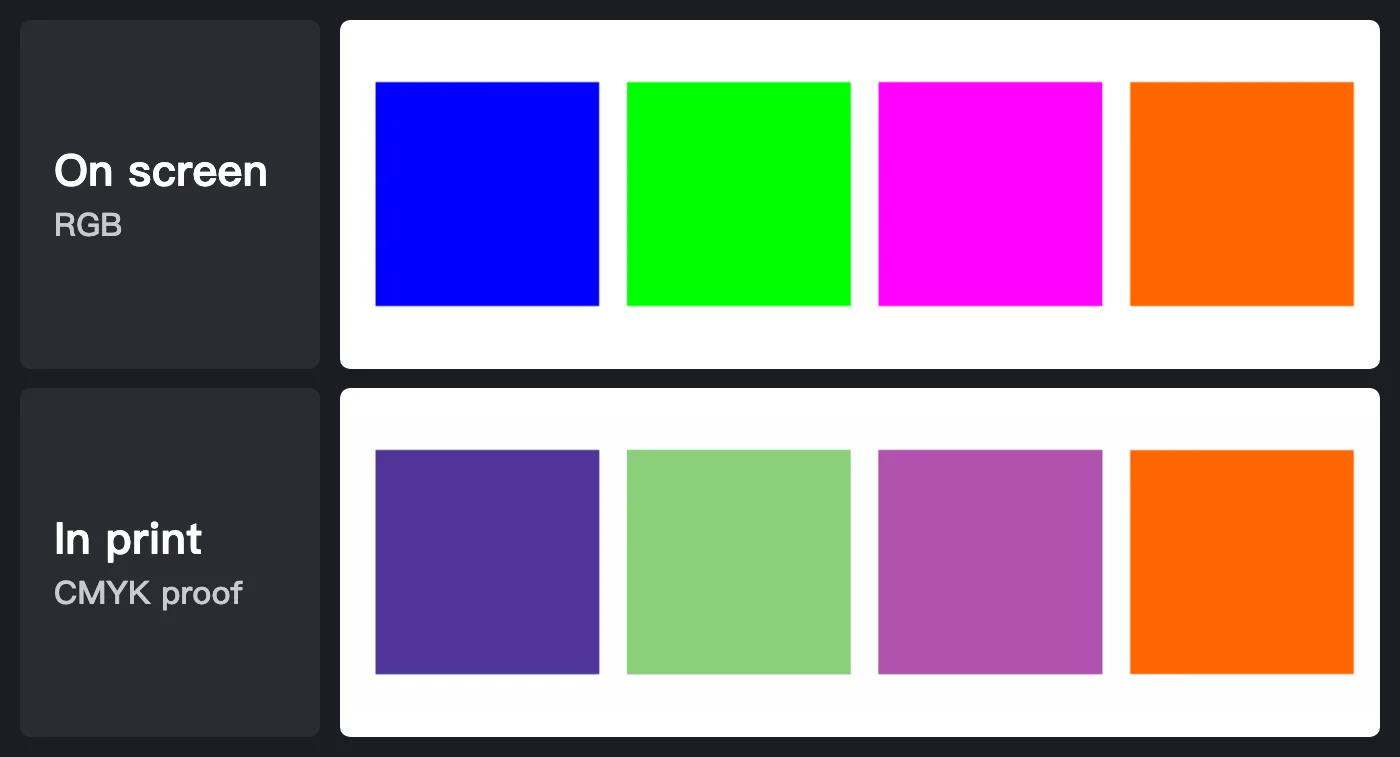
| Comparison | RGB | CMYK |
|---|---|---|
| How it works | Red, green, and blue light mixed together toward white | Cyan, magenta, yellow, and black inks mixed on paper toward dark brown/black |
| Best used for | Phones, monitors, websites, pitch decks, and social graphics | Business cards, posters, packaging, and commercial print runs |
| Gamut range | Wide range including neon blues, glowing greens, and electric magentas | Smaller ink gamut: vivid blue shifts violet, bright green turns muted, warm oranges/yellows hold closely |
| Channel scale | 0–255 per channel | 0–100% ink per plate |
Why print shops insist on CMYK
Monitors emit light directly to your eyes, so stacking colors gets brighter (255, 255, 255 produces pure white). Paper behaves in reverse: white sheets reflect ambient light through semi-transparent ink, so stacking cyan, magenta, yellow, and black ink absorbs light and dulls extreme saturation across solid brand panels, gradients, and headline accents.
Pure additive RGB blue (#0000FF), neon green (#00FF00), and bright magenta (#FF00FF) fall well outside the four-ink press gamut. Sending an RGB file straight to press leaves that color remap until the RIP step on the shop floor, meaning you only discover deeper purple-blue logos or muted sage greens after printed cards or packaging boxes arrive. Checking CMYK early lets you adjust brightness and pick safer ink percentages before export.
Choosing the right CMYK working space for your paper
Paper finish changes ink absorption almost as much as the color model itself. Gloss coated brochures hold crisp ink dots on the surface, whereas uncoated offset letterheads absorb more ink and mute dark shadows further.
Under Edit > Color Settings…, Vectorpip lets you switch the CMYK proof working space before checking your canvas:
| Working space | Print standard & paper stock |
|---|---|
| U.S. Web Coated (SWOP) v2 (default) | North American commercial coated flyers, brochures, and magazines |
| Coated FOGRA39 | European commercial coated printing standard |
| Japan Color 2001 Coated | Japanese and Asian offset coated print stock |
| Uncoated FOGRA29 | Uncoated stock, matte stationery, kraft folders, and letterhead where blacks print softer and shadows spread more |
Preview and convert for print in Vectorpip
-
Click Preview print colors and open your .ai or PDF artwork (or open an SVG or EPS via File > Open…; vector files and raster photos both preview inside the canvas).
-
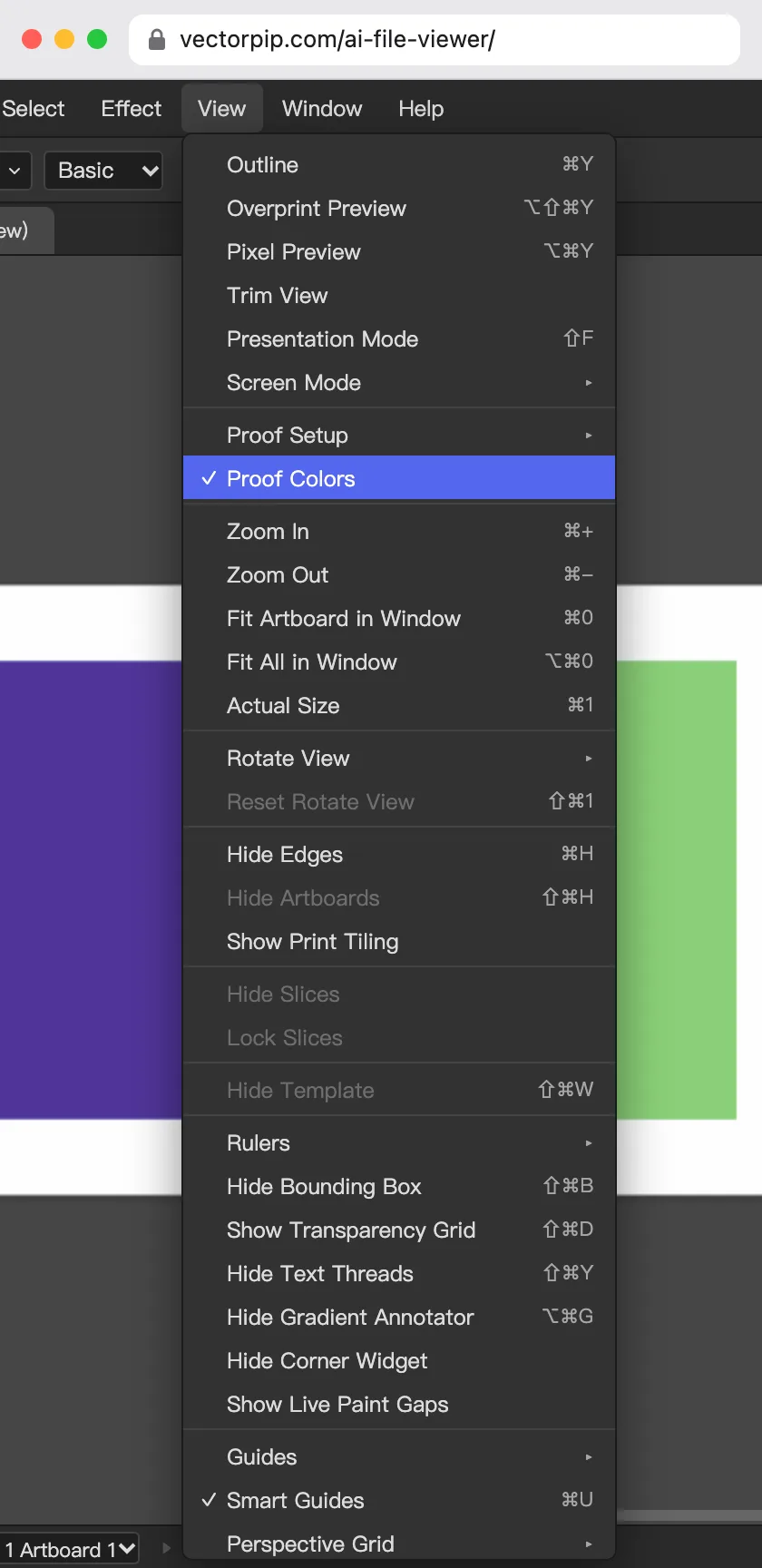
Choose View > Proof Colors. Out-of-gamut blues, greens, and magentas immediately preview how four inks compress them on the active paper profile; choose View > Proof Colors again to toggle back to full monitor RGB.
-
Under Edit > Color Settings…, select the CMYK working profile matching your print house stock (SWOP v2, FOGRA39, Japan Color, or Uncoated FOGRA29).
-
Switch your working document model via File > Document Color Mode > CMYK Color. Vectorpip pulls out-of-gamut vector fills inside printable range, switches the Color panel to C / M / Y / K percentage sliders, and lets you type exact Swatch CMYK mixes (while leaving dedicated Spot color swatches untouched).
-
Export the press deliverable via File > Save As… (choose PDF) using [Press Quality] (or select [PDF/X-1a:2001] / [PDF/X-4:2008] when your vendor specifies PDF/X output intents and explicit CMYK color tagging).
Honest color boundaries inside a browser
Vectorpip keeps documents in sRGB internally so canvas compositing, blend modes, and SVG round-trips remain consistent across devices. That means View > Proof Colors simulates press appearance on screen rather than replacing a calibrated ICC soft-proof monitor.
When saving a CMYK document with [Press Quality], hand-entered Swatch CMYK ink values write verbatim into the PDF, while general vector colors and [PDF/X] exports convert via standard formula from RGB rather than custom press ICC lookup tables. Embedded RGB photographs remain RGB bitmaps inside the PDF and rely on your printer’s RIP profile. For tight corporate brand matching on folding cartons or labels, consider a named Spot swatch alongside a hard press proof.
Sources and dates
- Swatch simulations rendered directly from Vectorpip’s View > Proof Colors (under default U.S. Web Coated (SWOP) v2), captured 2026-11-24.
- Four working CMYK profiles, Swatch pass-through, and PDF/X presets tested in Vectorpip and documented in the editor limits guide (2026-11-24).
Next steps
- Need one fixed brand ink that never shifts between print runs? Open Vectorize Image and assign a Spot Color swatch.
- Ready to hand off your PDF? Run Print-Ready File Checker to check trim bleed, image resolution, and fonts (note that it checks geometry and resolution rather than color mode).