
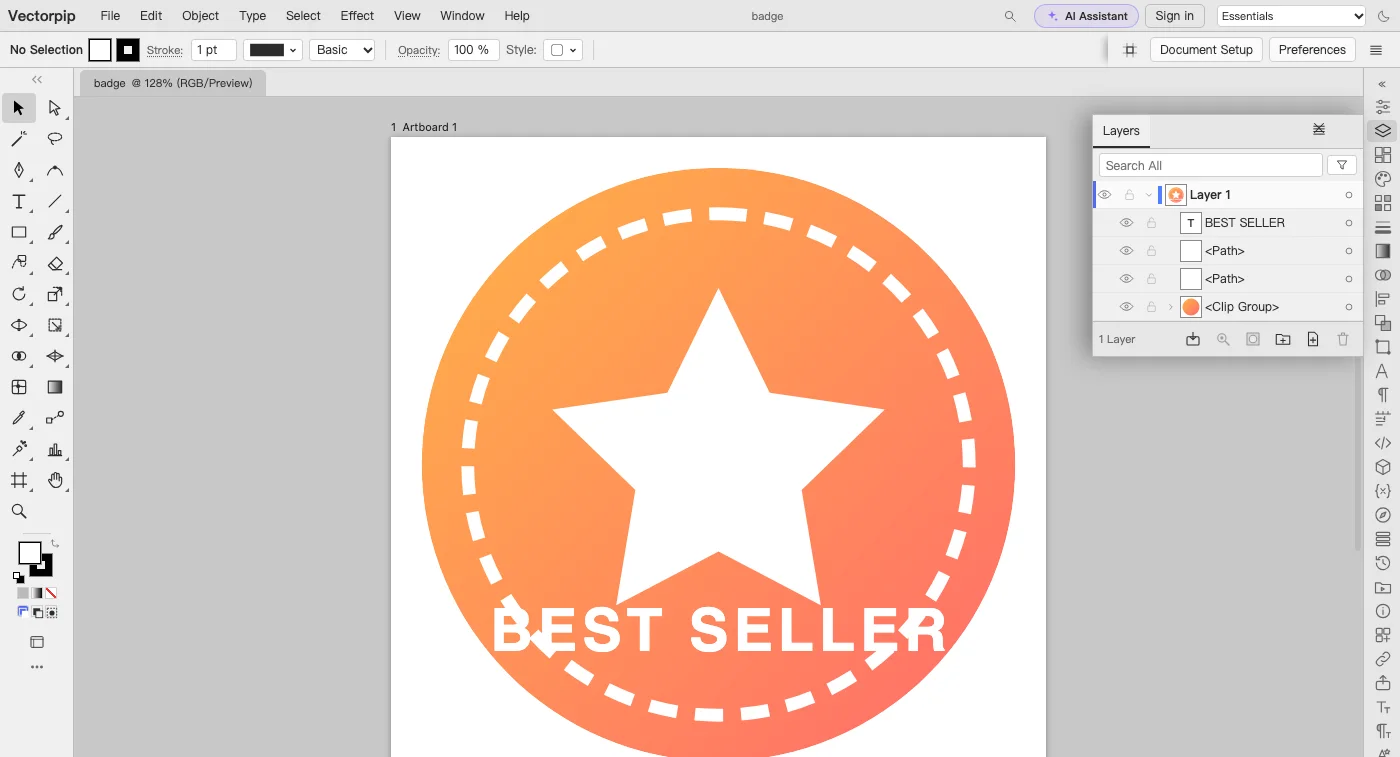
If you know Illustrator, you already know this editor: the menus, panels, tools and shortcuts are the same, and your .ai files open and save as .ai. The table above says what carries over; the questions at the end say where the edges are.
How it compares with the usual suggestions
| Opens .ai | How it differs | |
|---|---|---|
| Vectorpip | Yes (PDF-compatible .ai), and saves .ai | Illustrator’s menus and shortcuts, in any browser; no collaboration |
| Inkscape | Through PDF import | Its own tools; a desktop install; an extension ecosystem |
| Figma | No | Its own tools, in the browser; real-time collaboration |
| Vectr, SVG-Edit | SVG only | Its own tools, in the browser; Vectr collaborates |
The table states what each tool documents about itself; the other tools have strengths this page does not cover, such as Figma’s design collaboration and Inkscape’s extensions.
Start in four steps
- Click Start drawing — free. The editor’s Home opens; click Create a new file, pick a preset (Letter, A4, Web 1366, Business Card) or type a width and height, then click Create.
- Draw with the Pen (P), Curvature and shape tools, set type with the Type tool (T), and combine shapes with the Shape Builder tool (Shift+M) or the Pathfinder panel. The keys are Illustrator’s: Ctrl+Shift+O (Windows) or Command+Shift+O (macOS) still creates outlines.
- To keep working on an existing file, choose File > Open… and pick an .ai, EPS, PDF or SVG. Paths, text, gradients and layers open editable; the Layers panel shows them as Illustrator did.
- Choose File > Save As… to write an .ai (PDF-compatible), EPS, PDF or SVG, or File > Export > Export As… for PNG, JPG or DXF. Files are written on your device; nothing is uploaded.