Convert an EPS to SVG
An SVG with real paths, real gradients and real text, each layer a named group, free.
How to Use
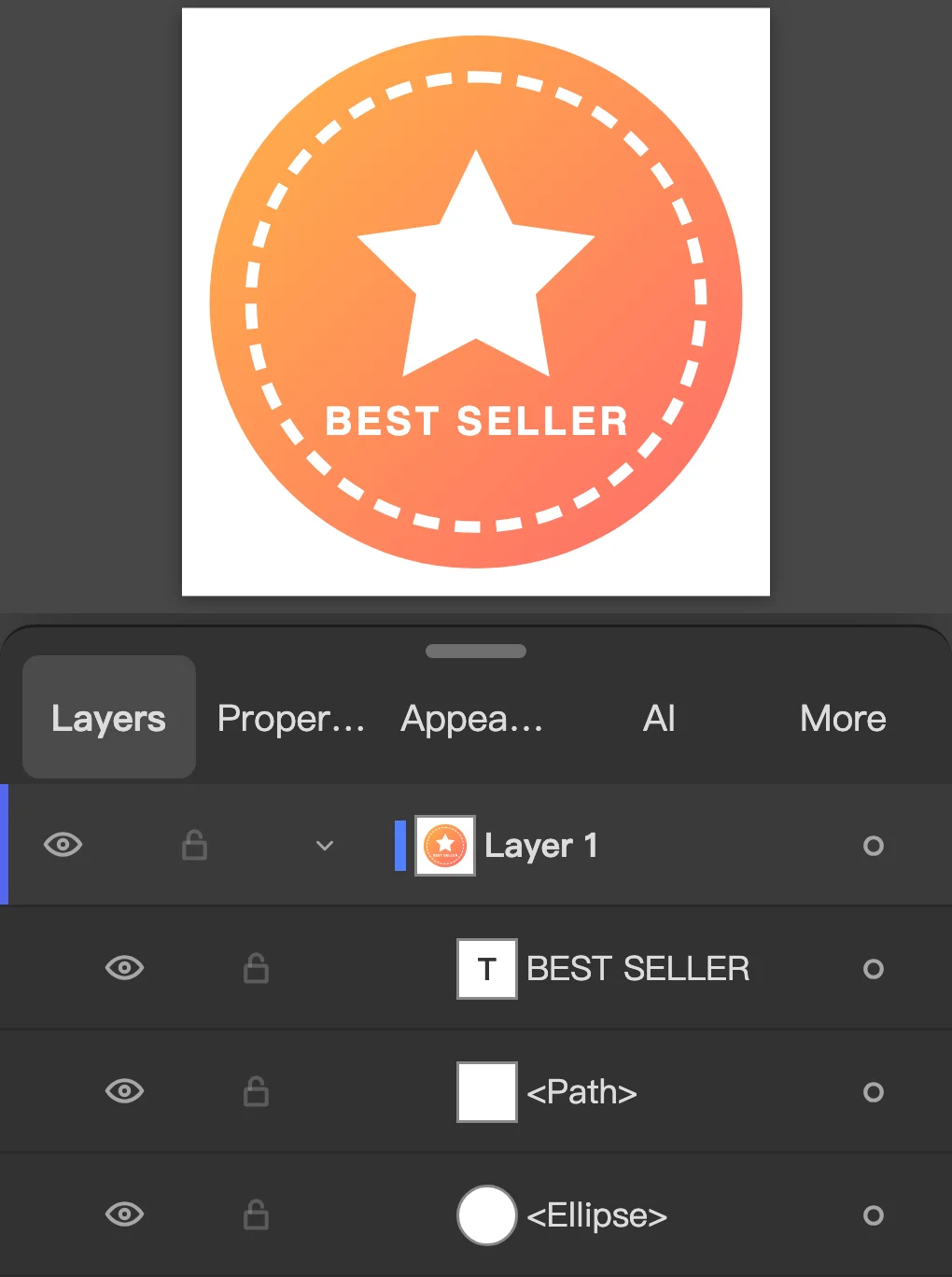
Choose an EPS and its paths, colors, gradients, layers and type open editable on an artboard; Export As comes up with SVG chosen. Set the SVG Options as you would in Illustrator and the file downloads. Nothing is uploaded.
- Click Choose an EPS and pick the file (on a computer you can also drop it anywhere on the page). Nothing is uploaded: the artwork opens on your device as editable paths, colors, gradients and type; an EPS from Illustrator keeps its layers.
- Keep SVG as the Format, choose the Artboards if there are several, and click Save. Each artboard becomes its own SVG; on an iPhone an SVG saves to Files only.
- To set how the SVG is written, use Export As: on a computer it opens over the artwork as soon as the file is in, with SVG (svg) chosen; on a phone, click Open in Editor, then choose File > Export > Export As…. Click Export. SVG Options sets Styling (Internal CSS, Inline Style or Presentation Attributes), Font (SVG or Convert To Outlines), Images, Object IDs (Layer Names, Minimal or Unique), Decimal, Minify and Responsive; Show Code shows the SVG these settings write. Click OK.
- To tidy the artwork first, close Export As, delete what you don't want, or select the type and choose Type > Create Outlines, then export again. File > Save As… writes .ai, EPS or PDF.
- How do I convert an EPS to SVG without Illustrator?
- Click Choose an EPS, pick the file, click Export and then OK. The EPS is read and the SVG written in your browser; nothing to install, nothing uploaded, no account.
- Does the text stay text?
- Type in an EPS saved from Illustrator opens as type, and with Font set to SVG it is written as <text> with its font name, so a browser or editor can still select and restyle it. If the EPS had its type outlined before it was saved, as stock sites often do, the letters arrive as paths. Choose Convert To Outlines when the SVG goes to a cutter or a page without the font.
- Are gradients and layers kept?
- Yes. Gradients are written as SVG gradients, not pictures, and each layer becomes a <g> with the layer's name as its id, so the SVG stays organized in Figma, Inkscape or code.
- Which EPS files convert well?
- EPS saved from Illustrator converts best: its layers become named groups and its type stays text. EPS from CorelDRAW, Inkscape, LaTeX or matplotlib is run as PostScript, so paths, fills, gradients and pictures come through and the SVG has one layer; an Illustrator EPS with embedded pictures is run the same way. EPS files open up to 400 MB.
- Can I use the SVG with Cricut or Silhouette?
- Yes. Design Space and Silhouette Studio import SVG. Set Font to Convert To Outlines so the lettering is closed paths, and delete any background rectangle so the cutter doesn't cut a backing. Each color stays its own shape.
- Can I convert several EPS files at once?
- Yes. Choose an EPS (or File > Open…) takes several files, and each opens in its own tab. In Export As, select All Open Documents in One Zip: each document's SVG is written with the same SVG Options, and they download together in one zip.
More free toolsPDF to SVGPSD to AIFavicon generatorAI to PDFEPS to PDFBusiness card makerCertificate makerSVG to PNG
Convert an EPS to SVG
An SVG with real paths, real gradients and real text, each layer a named group, free.

How to Use
- Click Choose an EPS and pick the file (on a computer you can also drop it anywhere on the page). Nothing is uploaded: the artwork opens on your device as editable paths, colors, gradients and type; an EPS from Illustrator keeps its layers.
- Keep SVG as the Format, choose the Artboards if there are several, and click Save. Each artboard becomes its own SVG; on an iPhone an SVG saves to Files only.
- To set how the SVG is written, use Export As: on a computer it opens over the artwork as soon as the file is in, with SVG (svg) chosen; on a phone, click Open in Editor, then choose File > Export > Export As…. Click Export. SVG Options sets Styling (Internal CSS, Inline Style or Presentation Attributes), Font (SVG or Convert To Outlines), Images, Object IDs (Layer Names, Minimal or Unique), Decimal, Minify and Responsive; Show Code shows the SVG these settings write. Click OK.
- To tidy the artwork first, close Export As, delete what you don't want, or select the type and choose Type > Create Outlines, then export again. File > Save As… writes .ai, EPS or PDF.
Choose an EPS and its paths, colors, gradients, layers and type open editable on an artboard; Export As comes up with SVG chosen. Set the SVG Options as you would in Illustrator and the file downloads. Nothing is uploaded.
- How do I convert an EPS to SVG without Illustrator?
- Click Choose an EPS, pick the file, click Export and then OK. The EPS is read and the SVG written in your browser; nothing to install, nothing uploaded, no account.
- Does the text stay text?
- Type in an EPS saved from Illustrator opens as type, and with Font set to SVG it is written as <text> with its font name, so a browser or editor can still select and restyle it. If the EPS had its type outlined before it was saved, as stock sites often do, the letters arrive as paths. Choose Convert To Outlines when the SVG goes to a cutter or a page without the font.
- Are gradients and layers kept?
- Yes. Gradients are written as SVG gradients, not pictures, and each layer becomes a <g> with the layer's name as its id, so the SVG stays organized in Figma, Inkscape or code.
- Which EPS files convert well?
- EPS saved from Illustrator converts best: its layers become named groups and its type stays text. EPS from CorelDRAW, Inkscape, LaTeX or matplotlib is run as PostScript, so paths, fills, gradients and pictures come through and the SVG has one layer; an Illustrator EPS with embedded pictures is run the same way. EPS files open up to 400 MB.
- Can I use the SVG with Cricut or Silhouette?
- Yes. Design Space and Silhouette Studio import SVG. Set Font to Convert To Outlines so the lettering is closed paths, and delete any background rectangle so the cutter doesn't cut a backing. Each color stays its own shape.
- Can I convert several EPS files at once?
- Yes. Choose an EPS (or File > Open…) takes several files, and each opens in its own tab. In Export As, select All Open Documents in One Zip: each document's SVG is written with the same SVG Options, and they download together in one zip.
More free toolsPDF to SVGPSD to AIFavicon generatorAI to PDFEPS to PDFBusiness card makerCertificate makerSVG to PNG
No uploadNo sign-up