Check a PDF before you send it to print
Open the file and see what a print shop would send back, then fix it here.
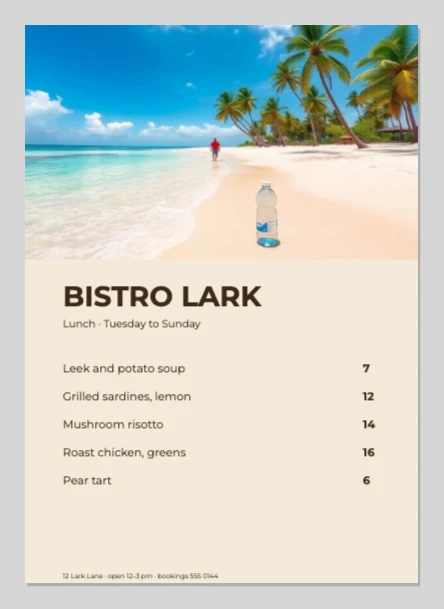 bistro-lark-menu.pdf
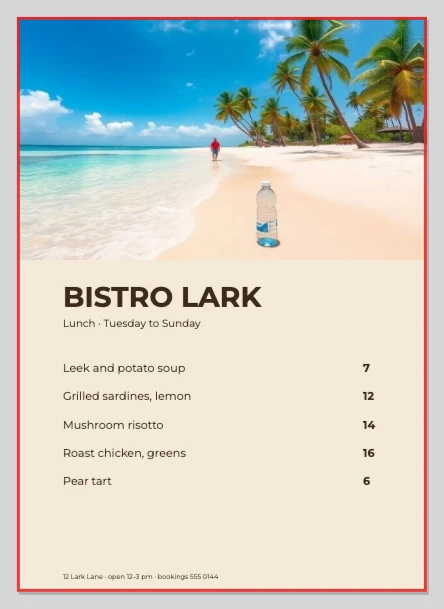 Bleed added
How to Use
Choose the PDF you made and it opens in the editor with a card on top. The card lists what print shops and KDP send files back for: bleed, each picture's resolution at the size it prints, fonts, and type close to the trim. When the editor can fix a row, the button is on that row.
- Under Check for, pick Print shop, KDP interior or KDP cover. Then click Choose the PDF, or drop a PDF or .ai on the page.
- Read the card. A row with ! is what would be sent back, and the canvas marks where in orange: the trim, or the frame of a blurry picture.
- Fix a row with its button. Add 0.125 in bleed (Add 3.2 mm bleed in a metric file) and Extend art into the bleed run the check again when they finish. For a blurry photo, click Replace... and pick a larger copy of the same shape; it takes the old picture's place and size. For a missing font, click Resolve Missing Fonts... and pick one this computer has.
- Click Save PDF. In Save as PDF, Marks and Bleeds already has Use Document Bleed Settings ticked, and Trim Marks too when you checked for a print shop; untick it if your printer asks for no marks. Click Save PDF again.
| Checks | Bleed, and whether the art reaches it; each picture's ppi at its printed size (300 needed); whether the fonts are on this computer; type nearer the trim than the rules allow |
|---|---|
| Not checked | Color mode (every PDF opens as RGB), TrimBox / BleedBox, overprint, total ink |
| Rules | Print shop: 0.125 in bleed, text 0.125 in inside the trim (Vistaprint's business card guide) · KDP interior: 0.125 in bleed on the top, bottom and outside edge · KDP cover: 0.125 in bleed, no marks |
| Where it runs | In your browser; nothing is uploaded |
The card checks what the editor opened, not the bytes of the PDF. Type is set again in the fonts this computer has, and the saved PDF embeds those, so a PDF made on another computer can show a font as missing even when the file embeds it. A PDF whose page already includes the bleed, with no trim box (a 3.5 × 2 in card saved at 3.75 × 2.25 in), opens at that size and reads as having no bleed: check the size in the card's subtitle before you add more. Extend art into the bleed moves shapes and pictures out, repeating a picture's edge or mirroring it if it is a photo; it doesn't make up new image content, and it leaves type, ellipses and rotated objects where they are. Save PDF keeps colors RGB; Save PDF/X-1a works out CMYK with a simple formula, not the press profile. KDP interior treats every page as a right-hand page, with the bleed on the right: it suits a single page, not a whole book with left-hand pages, and a PDF with more than 12 pages asks which pages to open.
- The print shop says my PDF has no bleed. What does the card do?
- With no bleed set, the first row reads No bleed: the page ends at the trim, and Add 0.125 in bleed (3.2 mm in a metric file) sets it. If a background or photo stops at the trim, the next row says on how many sides, and Extend art into the bleed pulls it out to the bleed's edge. Each is one step you can undo.
- A photo is under 300 ppi. Can the card make it sharper?
- No. The ppi here is the picture's pixels divided by the inches it prints at, so only a larger original raises it. Click Replace... and pick the larger file, or print the photo smaller; with two blurry photos, Replace takes the first, then the next. If there is no sharper copy, ask the print shop whether the number on the card will do, then click Save PDF anyway.
- Does it check CMYK?
- No. A PDF's CMYK colors become RGB when it opens, so the card can't tell what the file had, and Save PDF writes RGB. Save PDF/X-1a writes CMYK, worked out with a simple formula; for color that must match, ask the print shop for a proof.
- Is my file uploaded?
- No. The PDF is opened, checked and saved in your browser. PDFs over 2 GB are refused, and a PDF with more than 12 pages asks which pages to open.
RelatedAdd bleed to a PDF for printingOpen an .ai fileMake a business card