Open an EPS file
See every path and layer of the file, change what you need, and save it in the format you want, free.
How to Use
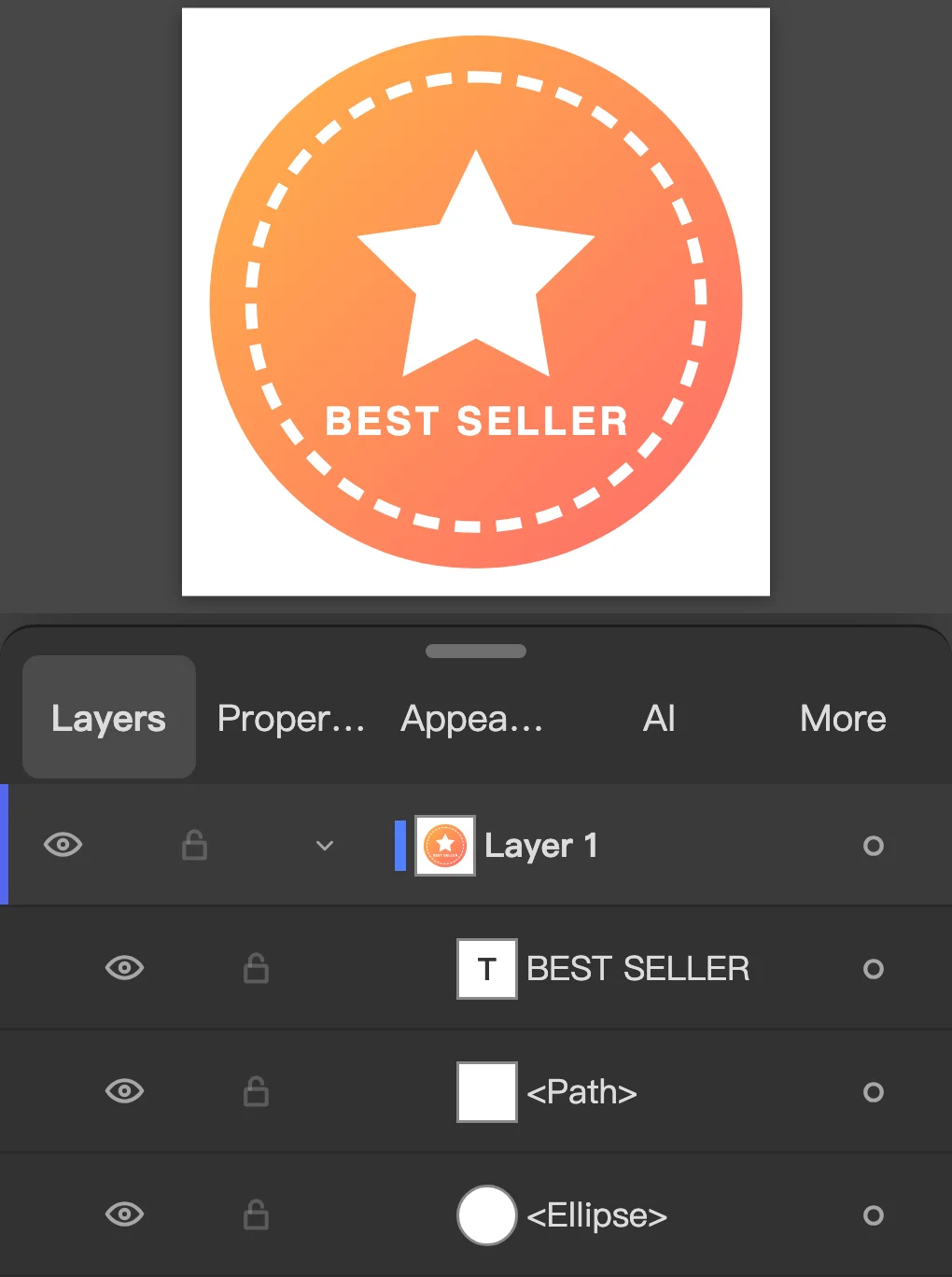
Choose an EPS, a stock vector, a logo from a print shop or an older file from a design app, and it is on the canvas with the Selection tool ready and its layers in the Layers panel. Zoom in as far as you like, change a color or a word, then save it as SVG, PNG, PDF, .ai or EPS.
- If the EPS came in an email or a chat, open the attachment and save it to Files first (on a computer, save it to your downloads).
- Click Open an EPS file and pick it (on a computer you can also drop it anywhere on the page). Nothing is uploaded: the artwork opens on your device with its layers, groups and paths.
- Pick a Format and click Save. A PNG or JPG is 1500 px on its long side; a PDF and an SVG keep the paths, and the type where it came in as text.
- To look closer or change it: click Open in Editor (on a computer the file opens there at once). The Zoom tool (Z) and the Hand tool (H) move around, the Direct Selection tool (A) shows the anchors, and the Type tool (T) changes words saved as text; type that another program outlined stays shapes. Then use File > Export > Export As… for SVG, PNG or JPG, File > Save As… for a PDF or an .ai file, or File > Export > Export as EPS.
- How do I open an EPS file without Illustrator?
- Click Open an EPS file and choose it: the artwork opens in your browser as editable paths, colors and text, with nothing installed and nothing uploaded. It works in a phone or tablet browser as well; the full set of panels is easiest on a screen at least 1024 px wide.
- Which EPS files open, and what can go missing?
- An EPS that carries drawing operators is read directly, layers included. An EPS from another program (CorelDRAW, Inkscape, LaTeX, matplotlib…) is run as PostScript, with its pictures, gradients and patterns drawn. Three limits: an EPS of the first kind with a picture inside comes in with its layers flattened into one; a rare PostScript operator is skipped while the rest of the page is still drawn; and an EPS from another program that runs past 30 million steps, 20 seconds or 2 million objects opens with what was drawn so far, and the status bar says which limit it hit. If nothing can be drawn at all, a Could not open file message says This EPS draws nothing Vectorpip can show.
- How do I convert an EPS to PNG, SVG or PDF?
- Open the EPS, then File > Export > Export As… and pick PNG, JPG or SVG; for a PDF use File > Save As…. PNG Options sets the resolution (72, 150 or 300 ppi) and a transparent or white background.
- Can I save back to EPS for a stock site or a print shop?
- Yes. File > Export > Export as EPS writes a PostScript Level 3 file with transparency flattened and type outlined, which is what EPS can hold. Keep the SVG or .vsd too if you want to edit the type later.
- Is there a file size limit? Is anything uploaded?
- Nothing is uploaded; the EPS is read in your browser. An EPS of up to 400 MB opens, so a stock vector of a few megabytes is no trouble.
More free toolsPrint-ready file checkerAdd bleed to PDFSVG path editorChange SVG colorOpen .ai filesBusiness card makerCertificate makerEPS to PNG
Open an EPS file
See every path and layer, then save it in the format you want, free.

How to Use
- If the EPS came in an email or a chat, open the attachment and save it to Files first (on a computer, save it to your downloads).
- Click Open an EPS file and pick it (on a computer you can also drop it anywhere on the page). Nothing is uploaded: the artwork opens on your device with its layers, groups and paths.
- Pick a Format and click Save. A PNG or JPG is 1500 px on its long side; a PDF and an SVG keep the paths, and the type where it came in as text.
- To look closer or change it: click Open in Editor (on a computer the file opens there at once). The Zoom tool (Z) and the Hand tool (H) move around, the Direct Selection tool (A) shows the anchors, and the Type tool (T) changes words saved as text; type that another program outlined stays shapes. Then use File > Export > Export As… for SVG, PNG or JPG, File > Save As… for a PDF or an .ai file, or File > Export > Export as EPS.
Choose an EPS, a stock vector, a logo from a print shop or an older file from a design app, and it is on the canvas with the Selection tool ready and its layers in the Layers panel. Zoom in as far as you like, change a color or a word, then save it as SVG, PNG, PDF, .ai or EPS.
- How do I open an EPS file without Illustrator?
- Click Open an EPS file and choose it: the artwork opens in your browser as editable paths, colors and text, with nothing installed and nothing uploaded. It works in a phone or tablet browser as well; the full set of panels is easiest on a screen at least 1024 px wide.
- Which EPS files open, and what can go missing?
- An EPS that carries drawing operators is read directly, layers included. An EPS from another program (CorelDRAW, Inkscape, LaTeX, matplotlib…) is run as PostScript, with its pictures, gradients and patterns drawn. Three limits: an EPS of the first kind with a picture inside comes in with its layers flattened into one; a rare PostScript operator is skipped while the rest of the page is still drawn; and an EPS from another program that runs past 30 million steps, 20 seconds or 2 million objects opens with what was drawn so far, and the status bar says which limit it hit. If nothing can be drawn at all, a Could not open file message says This EPS draws nothing Vectorpip can show.
- How do I convert an EPS to PNG, SVG or PDF?
- Open the EPS, then File > Export > Export As… and pick PNG, JPG or SVG; for a PDF use File > Save As…. PNG Options sets the resolution (72, 150 or 300 ppi) and a transparent or white background.
- Can I save back to EPS for a stock site or a print shop?
- Yes. File > Export > Export as EPS writes a PostScript Level 3 file with transparency flattened and type outlined, which is what EPS can hold. Keep the SVG or .vsd too if you want to edit the type later.
- Is there a file size limit? Is anything uploaded?
- Nothing is uploaded; the EPS is read in your browser. An EPS of up to 400 MB opens, so a stock vector of a few megabytes is no trouble.
More free toolsPrint-ready file checkerAdd bleed to PDFSVG path editorChange SVG colorOpen .ai filesBusiness card makerCertificate makerEPS to PNG
No uploadNo sign-up