
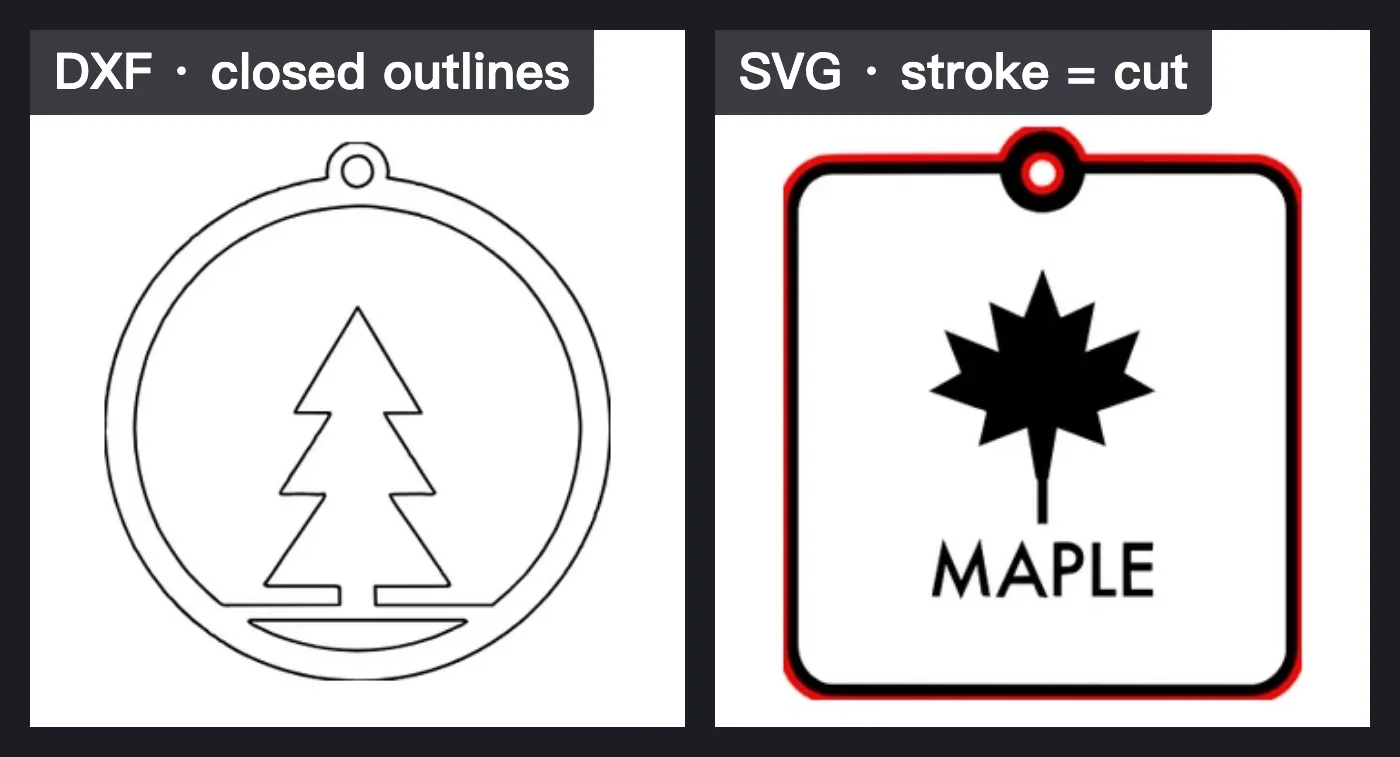
A laser follows lines, and every machine’s software reads them from a vector file. The file type matters less than two things inside it: which lines are cuts, and whether the lettering is still text.
| Software | Takes | Cut or engrave | Text |
|---|---|---|---|
| Glowforge app | SVG and PDF to cut and engrave; JPG and PNG engrave only; DXF for Premium members | A stroke is a cut, a fill an engrave; each color is a step; stroke width is ignored | Convert it to paths |
| xTool Creative Space | JPG, PNG, BMP, GIF, WEBP, SVG and DXF | Set in XCS after import | Text in an SVG isn't shown; convert it to paths |
| LightBurn | AI, SVG, DXF, PDF, PLT and HPGL; PNG, JPG, BMP, GIF and TIFF | Each color is a layer, and the layer's mode decides | Install the font or convert it to paths; embedded fonts aren't read |
| Cricut Design Space | SVG and DXF as vectors, SVG up to 5,000 paths; JPG, PNG, BMP, GIF as pictures | Layers in the file arrive as separate layers | No editable text; also no gradients or clipping paths |
| Silhouette Studio | SVG needs Designer Edition or above; Basic opens DXF, per user community tutorials | Set in Studio before you send the cut | Shapes are safest |
| CNC and CAD software | DXF | One closed outline per shape; your CAM software decides the rest | Text entities don't cut; outline them |
From each maker's help pages and user guide, read 2026-10-23. These rules change with software updates; your machine's software has the final word.
Why the file type matters less than what’s in it
A JPG or PNG has no lines, only pixels. Most laser software can engrave it as a picture, but nothing in it says where to cut. A vector file has paths, and the software still needs to know which of them to cut. Each program decides that its own way: the Glowforge app reads strokes as cuts and fills as engraves, LightBurn gives each color its own layer and mode, and in xTool Creative Space you set it after import.
Lettering is the other common failure. Live text depends on a font, and when the software doesn’t have it or doesn’t read text in an SVG, the letters move, change or disappear. Glowforge, xTool, LightBurn and Cricut all tell you to convert text to paths before you export.
Size is the last one. Some programs read an SVG’s width as pixels and others as points, so the same file can come in at different sizes. A DXF from Vectorpip writes millimeters into its header; if an SVG comes in at the wrong size, use the DXF.
Make a cut file from a picture
-
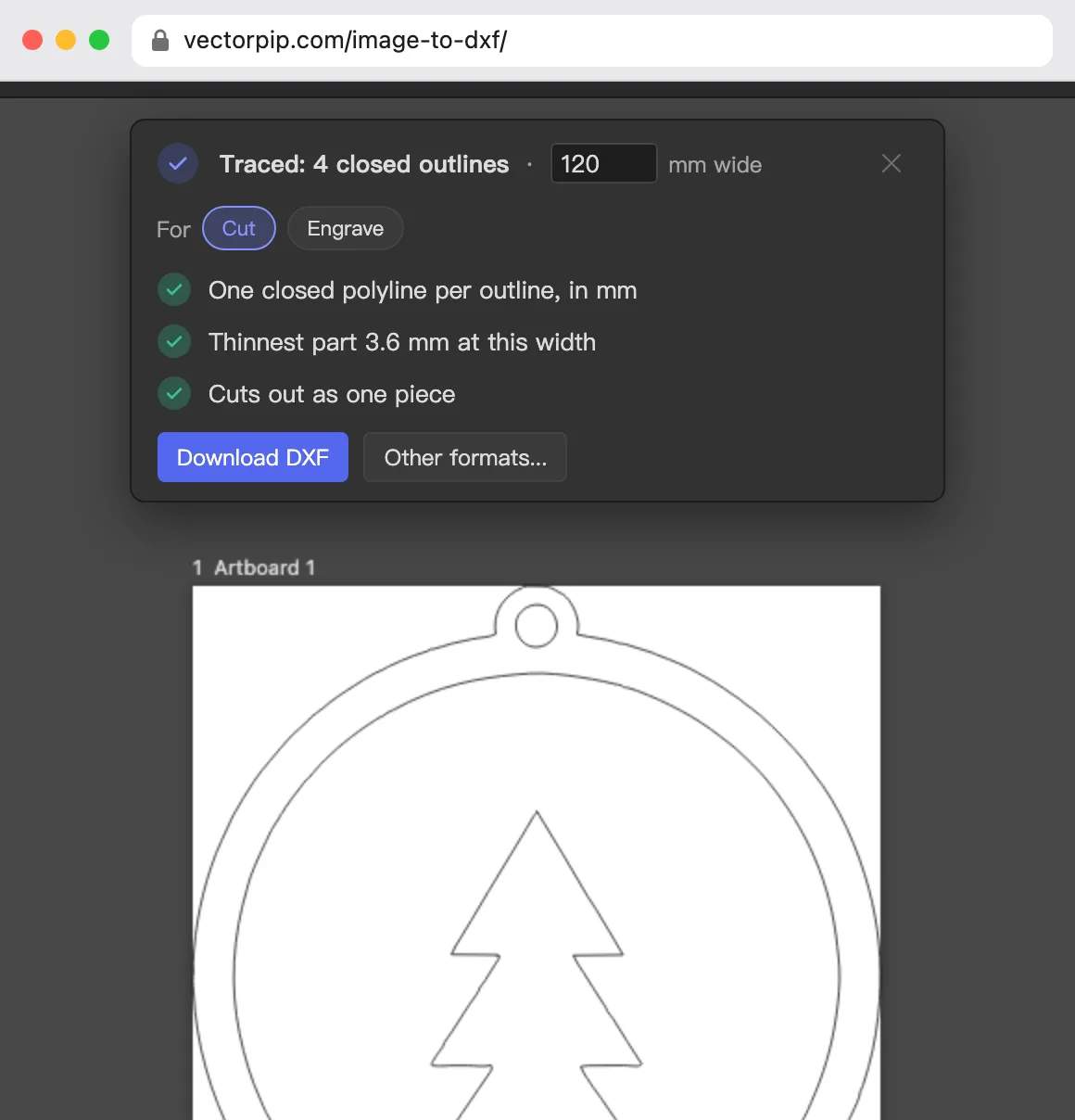
Click Convert an image to DXF and choose your JPG or PNG. It is traced at once into closed shapes, dark on light, with the white background left out.
-
Type the finished width in millimeters in the card. Everything scales with it, and the card measures the thinnest part at that width.
-
Pick Cut or Engrave in the card. Cut writes closed outlines to the DXF; Engrave keeps the shapes filled in an SVG.
-
Click Download DXF (or Download SVG for Engrave), then import it in your machine’s software and set cut or engrave where that software asks. Check the size once after import.
Note: For a Glowforge, use the SVG for Glowforge page instead: it writes the outer edge as a red stroked line to cut and keeps the inside filled to engrave. Everything is traced and written in your browser; the picture isn’t uploaded.
Sources and dates
- Glowforge help: “Upload Your Own Design File” and “Make a Gift Tag from Scratch using Inkscape”, read 2026-10-23.
- xTool support: “xTool Creative Space Desktop Overview” (updated January 2, 2025), “FAQs on Importing Images” (updated May 6, 2025) and “How to Pre-Edit Texts for a Better Engraving Effect”, read 2026-10-23.
- LightBurn user guide: “Creating and Importing Artwork” and “Colors and Layers”, read 2026-10-23.
- Cricut help: “How to upload images into Design Space” (edited March 30, 2026) and “Image uploads: unsupported items”, read 2026-10-23.
- Silhouette America software FAQ, read 2026-10-23.
Next steps
- Your design is already an SVG: convert the SVG to DXF.
- For a Glowforge: make an SVG for Glowforge.